# Build a Face That Follows Your Cursor
> Keeping generated faces consistent, reviewing awkward transitions, and animating 57 still frames with a reversible compass controller.
Sid Jain · Published 2026-09-13
Canonical post: https://f0rr0.dev/writing/build-a-cursor-following-portrait
---
import motionReview from "./motion-review.png";
import portraitOverlay from "./portrait-overlay.png";
import contactSheetPoses from "./contact-sheet-poses.png";
import contactSheetFrames from "./contact-sheet-frames.png";
My website's header portrait follows the cursor. It's still images played in sequence; most of the work was getting those images to agree on what my face looks like.

## Start with one face you like
Pick a front-facing photo, one from each three-quarter angle, and optionally one with a raised or lowered chin. Keep hairstyle, facial hair and lighting consistent. These establish your likeness; they aren't the animation frames.
Generate one neutral portrait first. Settle the clothes, expression and style here, then use that approved image alongside the real photos for every subsequent pose. The photos establish identity; the neutral portrait locks the rendering.
My early attempts changed my face width, head size and skin tone between poses. Generate each portrait separately, then assemble a review sheet in code. Asking for the whole sheet in one generation made consistency harder.
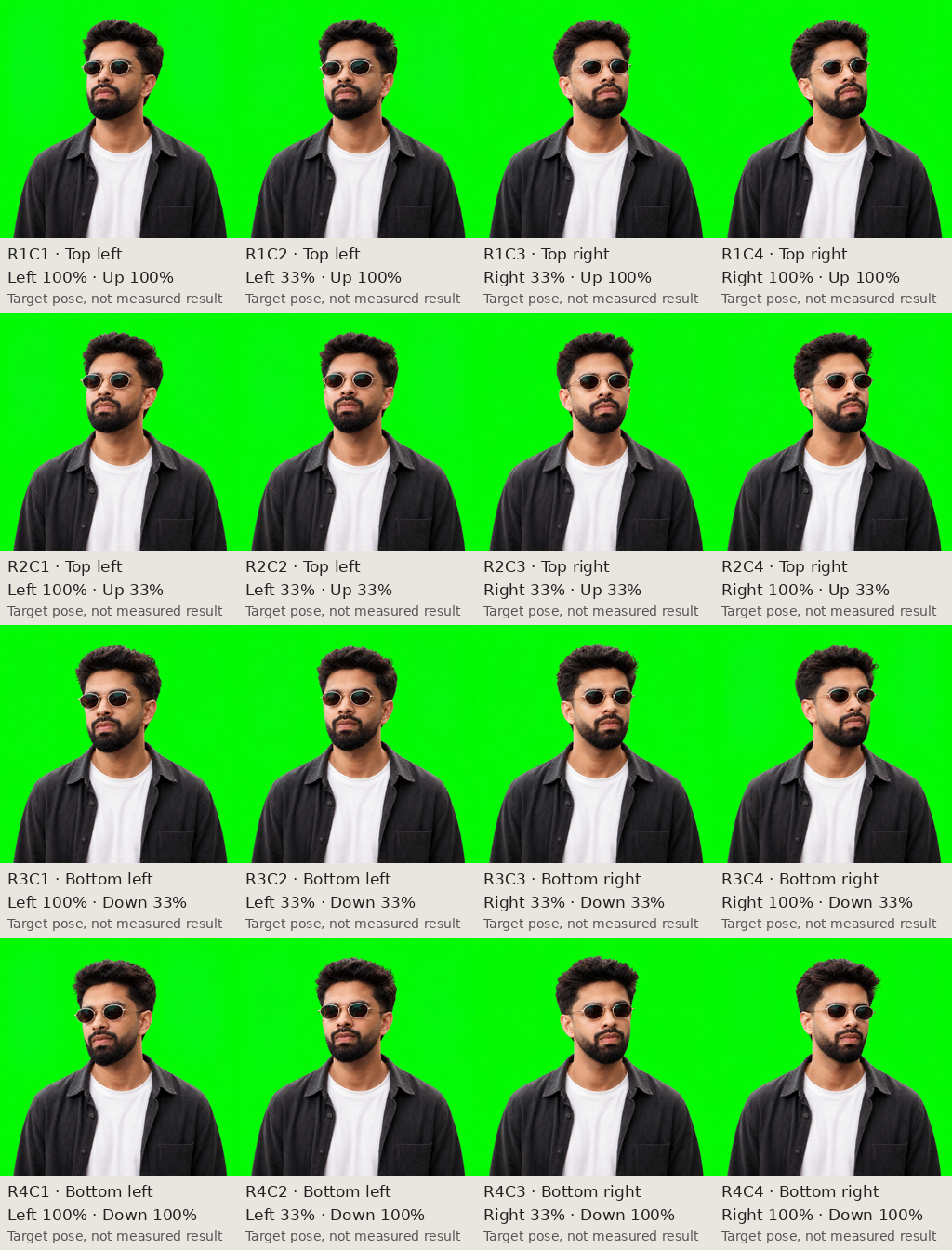
An early 16-pose study, before I settled on the nine-pose compass below. Codes such as R4C2 made feedback precise; percentages described intended poses, not measured angles. Tap to enlarge.
## Give the head somewhere to go
Make eight directional endpoints around the neutral pose: right, bottom-right, bottom, bottom-left, left, top-left, top and top-right. Directions mean **the viewer's screen directions**. “Top” should visibly raise the chin; moving only the pupils barely reads at this size.
The useful constraint is that only the head turns. Keep the torso, crop, apparent head scale, hair and lighting fixed. A head-only edit mask helps preserve the body, but the neck join still needs inspection.
Next, connect center to each endpoint, and each directional endpoint to its neighbor around the ring. That's 16 paths. Generate three intermediate poses per path, giving you **9 endpoints + 16 × 3 intermediates = 57 frames**.
Approve the endpoints before making the in-betweens. Attach both endpoints to generate the midpoint, then use the midpoint and the relevant endpoint to generate each quarter step:
```text
Create one intermediate portrait halfway between these two poses.
Keep the head rotation between their angles, with no overshoot.
Preserve the face proportions, hair, expression, lighting and fixed
torso. Match their canvas size and framing. Output one image.
```
“Halfway” is a visual target, not measured interpolation. My independently generated intermediates sometimes dipped farther than the final pose, so the head lifted again at the end. Supplying neighboring poses gave the model the actual transition to work towards.
## Watch the transitions slowly
Apply one crop to the whole set. Cropping tightly around each head makes its size jump during playback, even when the generated poses are otherwise consistent.
Number the frames and keep a manifest pairing each code with its pose or transition. Review each five-image path at about four frames per second, then backwards. Show a label such as `F20 · Center → Bottom-right · 75%` so you can identify a bad frame while it's moving.
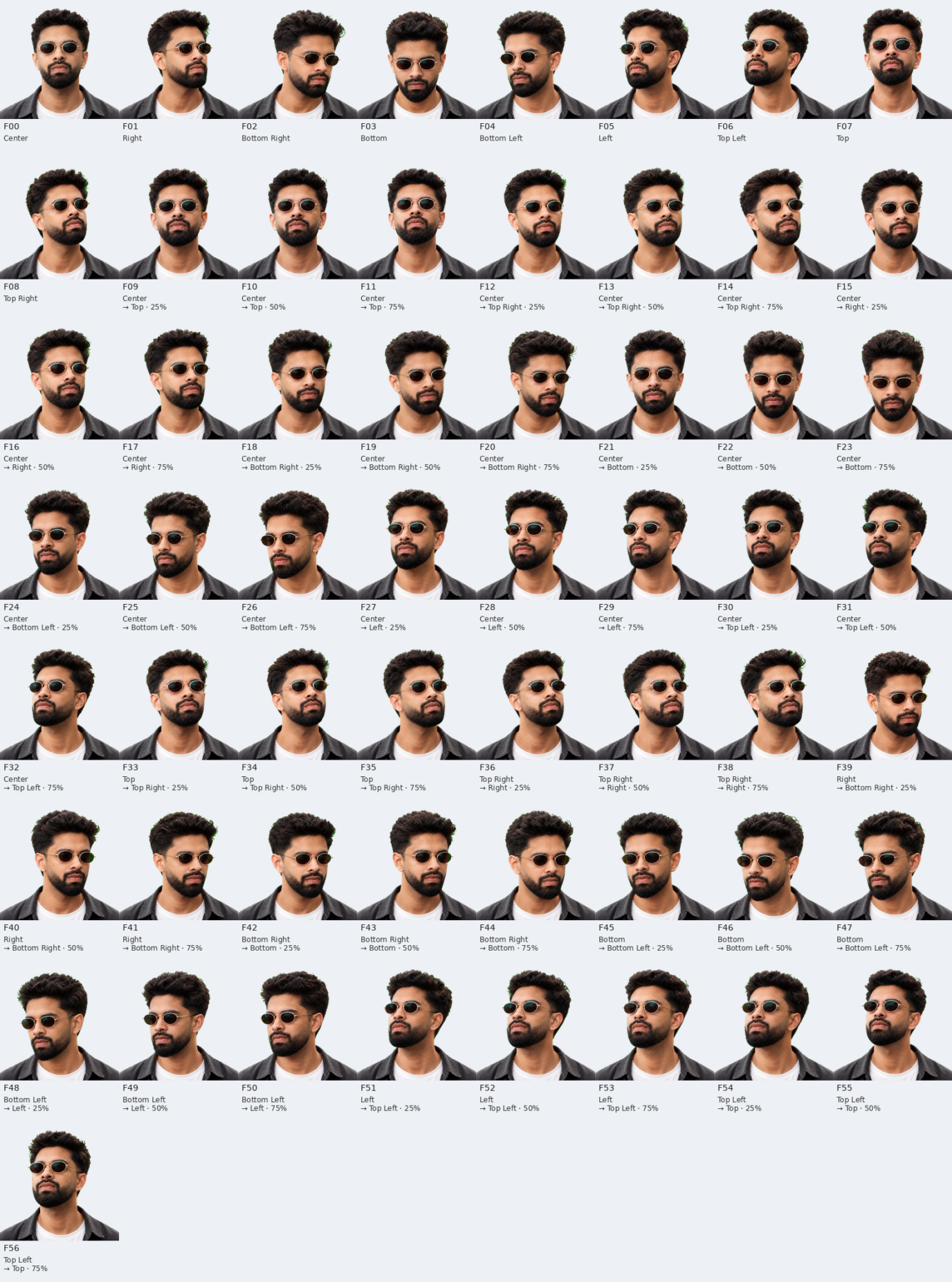
The full review set before corrections. F00–F08 are endpoints; F09–F56 are in-betweens. Compare F18–F20 with their destination F02, or F24–F26 with F04. Tap to read the labels.
I built a small web reviewer for this. It let me choose a movement, slow it down, step or scrub through it, and flag the current frame. The feedback button captured the frame code, transition and playback speed; I added what looked wrong.
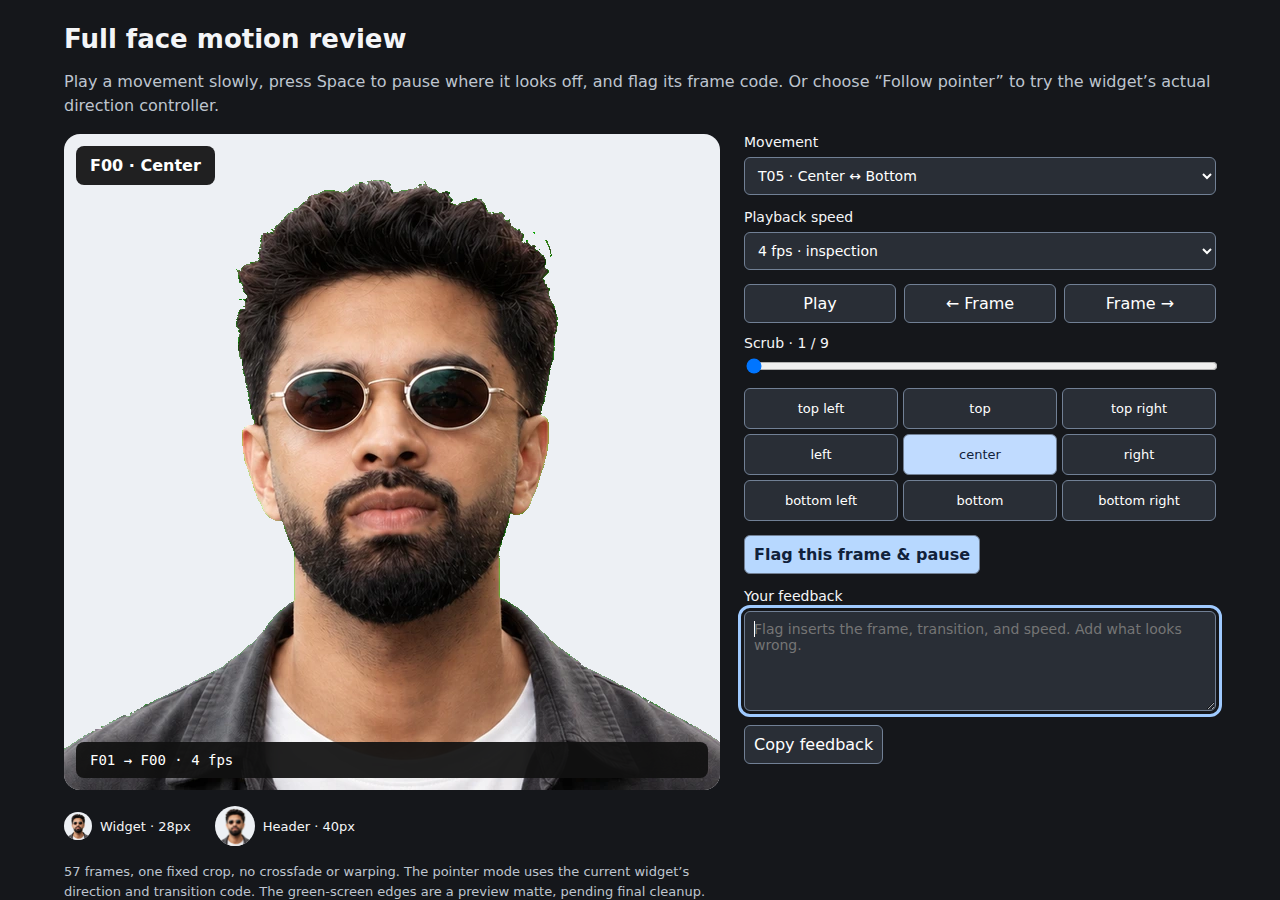
Early review tool, paused on F00. The nine scrub positions cover the five-frame path out and four steps back. Tap the screenshot to inspect the controls.
That made corrections specific: F20 changed the hair silhouette; F26 dipped farther than its bottom-left endpoint. Those frames needed regeneration. A faster timer wouldn't repair them.
Overlay neighbors at 50% opacity to spot shifting shoulders, changing hair and jumps in scale. Facial edges should move with rotation; the person shouldn't change.
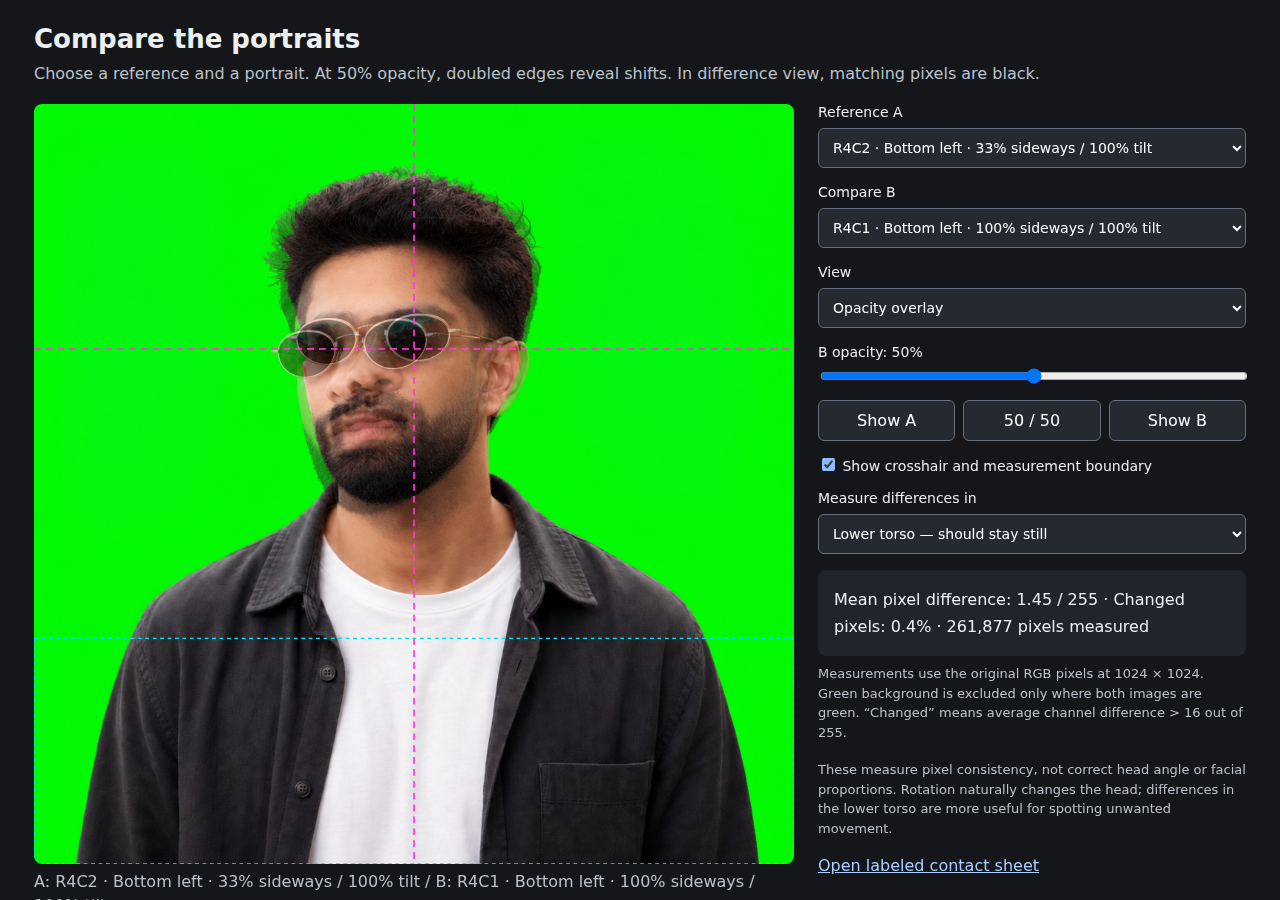
Comparing two earlier poses before background removal. Doubled edges reveal shifts; the lower-torso measurement checks an area that should stay still. Tap to enlarge.
The overlay also offered a pixel-difference view. I measured the torso separately because head rotation naturally changes facial pixels. A low torso difference helps confirm the body stayed anchored; it doesn't tell you whether the face proportions or turn angle are right.
After replacing an endpoint, replay every connected path. Check at the final size and speed too. Some uneven steps remain in mine; faster playback didn't fix inconsistent images.
## One image, many poses
I packed the 57 frames into an 8 × 8 WebP atlas, leaving seven cells empty. Each cell is 96 pixels square for the 48-pixel header portrait at 2× display density. A separate neutral image gives the page a small static fallback while the atlas loads.

The actual sprite sheet. Read left to right, row by row; neighboring cells aren't necessarily neighboring poses.
## Let the cursor choose a path
The cursor controller uses `atan2` to choose one of eight directions, with a neutral dead zone around the portrait. Neighboring poses connect directly; other turns pass through center. That small graph avoids generating transitions between every possible pair of poses.
Retargeting matters more than it first appears. If the cursor reverses halfway through a turn, restarting from an endpoint creates a visible snap. The controller compares the remaining route through either end of the current transition, then continues or reverses from the frame already on screen. The same three intermediate images work in both directions.
The element stays fixed. Only its CSS background position changes. For an 8 × 8 atlas, the underlying calculation is:
```ts
const column = index % 8;
const row = Math.floor(index / 8);
element.style.backgroundSize = "800% 800%";
element.style.backgroundPosition = `${column / 7 * 100}% ${row / 7 * 100}%`;
```
Divide by seven because CSS percentages align positions across the available background offset: the last cell must land at 100%. [MDN explains that percentage calculation](https://developer.mozilla.org/en-US/docs/Web/CSS/Reference/Properties/background-position).
The [header implementation](https://github.com/f0rr0/f0rr0.dev/pull/143) advances frames every 40ms while turning, then stops. It decodes the atlas before displaying it, respects reduced motion, and uses occasional half-glances on phones.
Once the shoulders stayed anchored and the head stopped changing size, the little portrait started to read as a person turning. Most of that improvement came from correcting the images.